更新实体
Upsert 操作结合了更新和插入数据的操作。Milvus 通过检查主键是否存在来决定执行更新还是插入操作。本节将介绍如何 Upsert 实体,以及在不同情况下 Upsert 操作的具体行为。
概述
当你需要更新 Collection 中的实体或不确定是更新还是插入时,你可以尝试使用 Upsert 操作。使用该操作时,必须确保 Upsert 请求中包含的实体包含主键,否则会出错。收到 Upsert 请求后,Milvus 将执行以下流程:
-
检查 Collection 的主字段是否启用了 AutoId。
-
如果是,Milvus 将用自动生成的主键替换实体中的主键,并插入数据。
-
如果没有,Milvus 将使用实体携带的主键插入数据。
-
-
根据 Upsert 请求中包含的实体主键值执行删除操作。
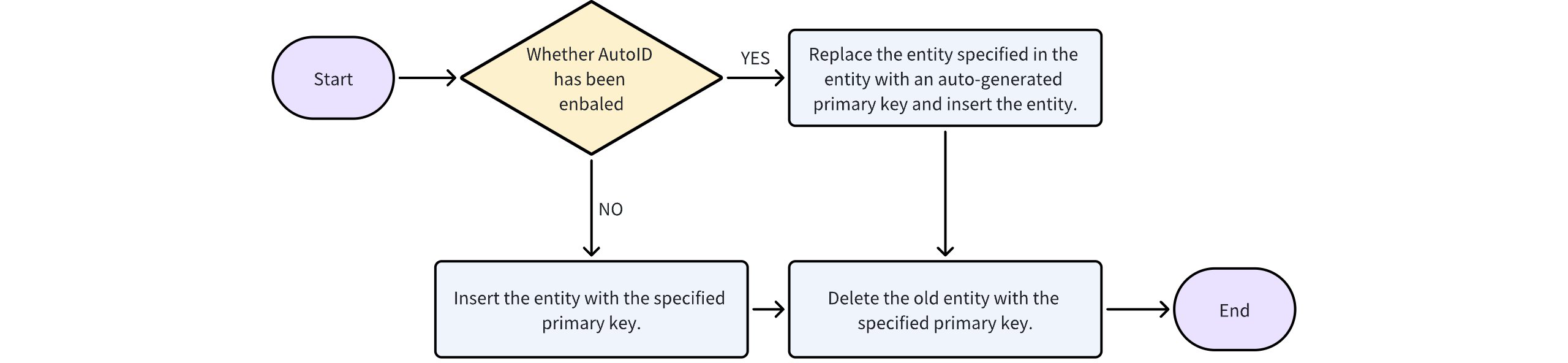 篡改实体工作流程
在 Collection 中 upsert 实体
本节将把实体上载到以快速设置方式创建的 Collection 中。以这种方式创建的 Collection 只有两个字段,即id和向量。此外,该 Collection 启用了动态字段,因此示例代码中的实体包含一个名为color的字段,该字段在 Schema 中未定义。
- Python
- Java
- NodeJS
- Go
- cURL
from pymilvus import MilvusClient

client = MilvusClient(
    uri="http://localhost:19530",
    token="root:Milvus"
)

data=[
    {"id": 0, "vector": [-0.619954382375778, 0.4479436794798608, -0.17493894838751745, -0.4248030059917294, -0.8648452746018911], "color": "black_9898"},
    {"id": 1, "vector": [0.4762662251462588, -0.6942502138717026, -0.4490002642657902, -0.628696575798281, 0.9660395877041965], "color": "red_7319"},
    {"id": 2, "vector": [-0.8864122635045097, 0.9260170474445351, 0.801326976181461, 0.6383943392381306, 0.7563037341572827], "color": "white_6465"},
    {"id": 3, "vector": [0.14594326235891586, -0.3775407299900644, -0.3765479013078812, 0.20612075380355122, 0.4902678929632145], "color": "orange_7580"},
    {"id": 4, "vector": [0.4548498669607359, -0.887610217681605, 0.5655081329910452, 0.19220509387904117, 0.016513983433433577], "color": "red_3314"},
    {"id": 5, "vector": [0.11755001847051827, -0.7295149788999611, 0.2608115847524266, -0.1719167007897875, 0.7417611743754855], "color": "black_9955"},
    {"id": 6, "vector": [0.9363032158314308, 0.030699901477745373, 0.8365910312319647, 0.7823840208444011, 0.2625222076909237], "color": "yellow_2461"},
    {"id": 7, "vector": [0.0754823906014721, -0.6390658668265143, 0.5610517334334937, -0.8986261118798251, 0.9372056764266794], "color": "white_5015"},
    {"id": 8, "vector": [-0.3038434006935904, 0.1279149203380523, 0.503958664270957, -0.2622661156746988, 0.7407627307791929], "color": "purple_6414"},
    {"id": 9, "vector": [-0.7125086947677588, -0.8050968321012257, -0.32608864121785786, 0.3255654958645424, 0.26227968923834233], "color": "brown_7231"}
]

res = client.upsert(
    collection_name='quick_setup',
    data=data
)

print(res)

# Output
# {'upsert_count': 10}
import com.google.gson.Gson;
import com.google.gson.JsonObject;
import io.milvus.v2.client.ConnectConfig;
import io.milvus.v2.client.MilvusClientV2;
import io.milvus.v2.service.vector.request.UpsertReq;
import io.milvus.v2.service.vector.response.UpsertResp;

import java.util.*;

MilvusClientV2 client = new MilvusClientV2(ConnectConfig.builder()
        .uri("http://localhost:19530")
        .token("root:Milvus")
        .build());

Gson gson = new Gson();
List<JsonObject> data = Arrays.asList(
        gson.fromJson("{\"id\": 0, \"vector\": [-0.619954382375778, 0.4479436794798608, -0.17493894838751745, -0.4248030059917294, -0.8648452746018911], \"color\": \"black_9898\"}", JsonObject.class),
        gson.fromJson("{\"id\": 1, \"vector\": [0.4762662251462588, -0.6942502138717026, -0.4490002642657902, -0.628696575798281, 0.9660395877041965], \"color\": \"red_7319\"}", JsonObject.class),
        gson.fromJson("{\"id\": 2, \"vector\": [-0.8864122635045097, 0.9260170474445351, 0.801326976181461, 0.6383943392381306, 0.7563037341572827], \"color\": \"white_6465\"}", JsonObject.class),
        gson.fromJson("{\"id\": 3, \"vector\": [0.14594326235891586, -0.3775407299900644, -0.3765479013078812, 0.20612075380355122, 0.4902678929632145], \"color\": \"orange_7580\"}", JsonObject.class),
        gson.fromJson("{\"id\": 4, \"vector\": [0.4548498669607359, -0.887610217681605, 0.5655081329910452, 0.19220509387904117, 0.016513983433433577], \"color\": \"red_3314\"}", JsonObject.class),
        gson.fromJson("{\"id\": 5, \"vector\": [0.11755001847051827, -0.7295149788999611, 0.2608115847524266, -0.1719167007897875, 0.7417611743754855], \"color\": \"black_9955\"}", JsonObject.class),
        gson.fromJson("{\"id\": 6, \"vector\": [0.9363032158314308, 0.030699901477745373, 0.8365910312319647, 0.7823840208444011, 0.2625222076909237], \"color\": \"yellow_2461\"}", JsonObject.class),
        gson.fromJson("{\"id\": 7, \"vector\": [0.0754823906014721, -0.6390658668265143, 0.5610517334334937, -0.8986261118798251, 0.9372056764266794], \"color\": \"white_5015\"}", JsonObject.class),
        gson.fromJson("{\"id\": 8, \"vector\": [-0.3038434006935904, 0.1279149203380523, 0.503958664270957, -0.2622661156746988, 0.7407627307791929], \"color\": \"purple_6414\"}", JsonObject.class),
        gson.fromJson("{\"id\": 9, \"vector\": [-0.7125086947677588, -0.8050968321012257, -0.32608864121785786, 0.3255654958645424, 0.26227968923834233], \"color\": \"brown_7231\"}", JsonObject.class)
);

UpsertReq upsertReq = UpsertReq.builder()
        .collectionName("quick_setup")
        .data(data)
        .build();

UpsertResp upsertResp = client.upsert(upsertReq);
System.out.println(upsertResp);

// Output:
//
// UpsertResp(upsertCnt=10)
const { MilvusClient, DataType } = require("@zilliz/milvus2-sdk-node")

const address = "http://localhost:19530";
const token = "root:Milvus";
const client = new MilvusClient({address, token});

data = [
    {id: 0, vector: [-0.619954382375778, 0.4479436794798608, -0.17493894838751745, -0.4248030059917294, -0.8648452746018911], color: "black_9898"},
    {id: 1, vector: [0.4762662251462588, -0.6942502138717026, -0.4490002642657902, -0.628696575798281, 0.9660395877041965], color: "red_7319"},
    {id: 2, vector: [-0.8864122635045097, 0.9260170474445351, 0.801326976181461, 0.6383943392381306, 0.7563037341572827], color: "white_6465"},
    {id: 3, vector: [0.14594326235891586, -0.3775407299900644, -0.3765479013078812, 0.20612075380355122, 0.4902678929632145], color: "orange_7580"},
    {id: 4, vector: [0.4548498669607359, -0.887610217681605, 0.5655081329910452, 0.19220509387904117, 0.016513983433433577], color: "red_3314"},
    {id: 5, vector: [0.11755001847051827, -0.7295149788999611, 0.2608115847524266, -0.1719167007897875, 0.7417611743754855], color: "black_9955"},
    {id: 6, vector: [0.9363032158314308, 0.030699901477745373, 0.8365910312319647, 0.7823840208444011, 0.2625222076909237], color: "yellow_2461"},
    {id: 7, vector: [0.0754823906014721, -0.6390658668265143, 0.5610517334334937, -0.8986261118798251, 0.9372056764266794], color: "white_5015"},
    {id: 8, vector: [-0.3038434006935904, 0.1279149203380523, 0.503958664270957, -0.2622661156746988, 0.7407627307791929], color: "purple_6414"},
    {id: 9, vector: [-0.7125086947677588, -0.8050968321012257, -0.32608864121785786, 0.3255654958645424, 0.26227968923834233], color: "brown_7231"}
]

res = await client.upsert({
    collection_name: "quick_setup",
    data: data,
})

console.log(res.upsert_cnt)

// Output
//
// 10
//
import (
    "context"
    "fmt"

    "github.com/milvus-io/milvus/client/v2/column"
    "github.com/milvus-io/milvus/client/v2/milvusclient"
)

ctx, cancel := context.WithCancel(context.Background())
defer cancel()

milvusAddr := "localhost:19530"
client, err := milvusclient.New(ctx, &milvusclient.ClientConfig{
    Address: milvusAddr,
})
if err != nil {
    fmt.Println(err.Error())
    // handle error
}
defer client.Close(ctx)

dynamicColumn := column.NewColumnString("color", []string{
    "pink_8682", "red_7025", "orange_6781", "pink_9298", "red_4794", "yellow_4222", "red_9392", "grey_8510", "white_9381", "purple_4976",
})

_, err = client.Upsert(ctx, milvusclient.NewColumnBasedInsertOption("quick_setup").
    WithInt64Column("id", []int64{0, 1, 2, 3, 4, 5, 6, 7, 8, 9}).
    WithFloatVectorColumn("vector", 5, [][]float32{
        {0.3580376395471989, -0.6023495712049978, 0.18414012509913835, -0.26286205330961354, 0.9029438446296592},
        {0.19886812562848388, 0.06023560599112088, 0.6976963061752597, 0.2614474506242501, 0.838729485096104},
        {0.43742130801983836, -0.5597502546264526, 0.6457887650909682, 0.7894058910881185, 0.20785793220625592},
        {0.3172005263489739, 0.9719044792798428, -0.36981146090600725, -0.4860894583077995, 0.95791889146345},
        {0.4452349528804562, -0.8757026943054742, 0.8220779437047674, 0.46406290649483184, 0.30337481143159106},
        {0.985825131989184, -0.8144651566660419, 0.6299267002202009, 0.1206906911183383, -0.1446277761879955},
        {0.8371977790571115, -0.015764369584852833, -0.31062937026679327, -0.562666951622192, -0.8984947637863987},
        {-0.33445148015177995, -0.2567135004164067, 0.8987539745369246, 0.9402995886420709, 0.5378064918413052},
        {0.39524717779832685, 0.4000257286739164, -0.5890507376891594, -0.8650502298996872, -0.6140360785406336},
        {0.5718280481994695, 0.24070317428066512, -0.3737913482606834, -0.06726932177492717, -0.6980531615588608},
    }).
    WithColumns(dynamicColumn),
)
if err != nil {
    fmt.Println(err.Error())
    // handle err
}
export CLUSTER_ENDPOINT="http://localhost:19530"
export TOKEN="root:Milvus"

curl --request POST \
--url "${CLUSTER_ENDPOINT}/v2/vectordb/entities/upsert" \
--header "Authorization: Bearer ${TOKEN}" \
--header "Content-Type: application/json" \
-d '{
    "data": [
        {"id": 0, "vector": [0.3580376395471989, -0.6023495712049978, 0.18414012509913835, -0.26286205330961354, 0.9029438446296592], "color": "pink_8682"},
        {"id": 1, "vector": [0.19886812562848388, 0.06023560599112088, 0.6976963061752597, 0.2614474506242501, 0.838729485096104], "color": "red_7025"},
        {"id": 2, "vector": [0.43742130801983836, -0.5597502546264526, 0.6457887650909682, 0.7894058910881185, 0.20785793220625592], "color": "orange_6781"},
        {"id": 3, "vector": [0.3172005263489739, 0.9719044792798428, -0.36981146090600725, -0.4860894583077995, 0.95791889146345], "color": "pink_9298"},
        {"id": 4, "vector": [0.4452349528804562, -0.8757026943054742, 0.8220779437047674, 0.46406290649483184, 0.30337481143159106], "color": "red_4794"},
        {"id": 5, "vector": [0.985825131989184, -0.8144651566660419, 0.6299267002202009, 0.1206906911183383, -0.1446277761879955], "color": "yellow_4222"},
        {"id": 6, "vector": [0.8371977790571115, -0.015764369584852833, -0.31062937026679327, -0.562666951622192, -0.8984947637863987], "color": "red_9392"},
        {"id": 7, "vector": [-0.33445148015177995, -0.2567135004164067, 0.8987539745369246, 0.9402995886420709, 0.5378064918413052], "color": "grey_8510"},
        {"id": 8, "vector": [0.39524717779832685, 0.4000257286739164, -0.5890507376891594, -0.8650502298996872, -0.6140360785406336], "color": "white_9381"},
        {"id": 9, "vector": [0.5718280481994695, 0.24070317428066512, -0.3737913482606834, -0.06726932177492717, -0.6980531615588608], "color": "purple_4976"}
    ],
    "collectionName": "quick_setup"
}'

# {
#     "code": 0,
#     "data": {
#         "upsertCount": 10,
#         "upsertIds": [
#             0,
#             1,
#             2,
#             3,
#             4,
#             5,
#             6,
#             7,
#             8,
#             9
#         ]
#     }
# }
在 Partition 中倒插实体
您还可以将实体插入指定的 Partition。以下代码片段假定您的 Collection 中有一个名为PartitionA的 Partition。
- Python
- Java
- NodeJS
- Go
- cURL
data=[
    {"id": 10, "vector": [0.06998888224297328, 0.8582816610326578, -0.9657938677934292, 0.6527905683627726, -0.8668460657158576], "color": "black_3651"},
    {"id": 11, "vector": [0.6060703043917468, -0.3765080534566074, -0.7710758854987239, 0.36993888322346136, 0.5507513364206531], "color": "grey_2049"},
    {"id": 12, "vector": [-0.9041813104515337, -0.9610546012461163, 0.20033003106083358, 0.11842506351635174, 0.8327356724591011], "color": "blue_6168"},
    {"id": 13, "vector": [0.3202914977909075, -0.7279137773695252, -0.04747830871620273, 0.8266053056909548, 0.8277957187455489], "color": "blue_1672"},
    {"id": 14, "vector": [0.2975811497890859, 0.2946936202691086, 0.5399463833894609, 0.8385334966677529, -0.4450543984655133], "color": "pink_1601"},
    {"id": 15, "vector": [-0.04697464305600074, -0.08509022265734134, 0.9067184632552001, -0.2281912685064822, -0.9747503428652762], "color": "yellow_9925"},
    {"id": 16, "vector": [-0.9363075919673911, -0.8153981031085669, 0.7943039120490902, -0.2093886809842529, 0.0771191335807897], "color": "orange_9872"},
    {"id": 17, "vector": [-0.050451522820639916, 0.18931572752321935, 0.7522886192190488, -0.9071793089474034, 0.6032647330692296], "color": "red_6450"},
    {"id": 18, "vector": [-0.9181544231141592, 0.6700755998126806, -0.014174674636136642, 0.6325780463623432, -0.49662222164032976], "color": "purple_7392"},
    {"id": 19, "vector": [0.11426945899602536, 0.6089190684002581, -0.5842735738352236, 0.057050610092692855, -0.035163433018196244], "color": "pink_4996"}
]

res = client.upsert(
    collection_name="quick_setup",
    data=data,
    partition_name="partitionA"
)

print(res)

# Output
# {'upsert_count': 10}
import io.milvus.v2.service.vector.request.UpsertReq;
import io.milvus.v2.service.vector.response.UpsertResp;

Gson gson = new Gson();
List<JsonObject> data = Arrays.asList(
        gson.fromJson("{\"id\": 10, \"vector\": [0.06998888224297328, 0.8582816610326578, -0.9657938677934292, 0.6527905683627726, -0.8668460657158576], \"color\": \"black_3651\"}", JsonObject.class),
        gson.fromJson("{\"id\": 11, \"vector\": [0.6060703043917468, -0.3765080534566074, -0.7710758854987239, 0.36993888322346136, 0.5507513364206531], \"color\": \"grey_2049\"}", JsonObject.class),
        gson.fromJson("{\"id\": 12, \"vector\": [-0.9041813104515337, -0.9610546012461163, 0.20033003106083358, 0.11842506351635174, 0.8327356724591011], \"color\": \"blue_6168\"}", JsonObject.class),
        gson.fromJson("{\"id\": 13, \"vector\": [0.3202914977909075, -0.7279137773695252, -0.04747830871620273, 0.8266053056909548, 0.8277957187455489], \"color\": \"blue_1672\"}", JsonObject.class),
        gson.fromJson("{\"id\": 14, \"vector\": [0.2975811497890859, 0.2946936202691086, 0.5399463833894609, 0.8385334966677529, -0.4450543984655133], \"color\": \"pink_1601\"}", JsonObject.class),
        gson.fromJson("{\"id\": 15, \"vector\": [-0.04697464305600074, -0.08509022265734134, 0.9067184632552001, -0.2281912685064822, -0.9747503428652762], \"color\": \"yellow_9925\"}", JsonObject.class),
        gson.fromJson("{\"id\": 16, \"vector\": [-0.9363075919673911, -0.8153981031085669, 0.7943039120490902, -0.2093886809842529, 0.0771191335807897], \"color\": \"orange_9872\"}", JsonObject.class),
        gson.fromJson("{\"id\": 17, \"vector\": [-0.050451522820639916, 0.18931572752321935, 0.7522886192190488, -0.9071793089474034, 0.6032647330692296], \"color\": \"red_6450\"}", JsonObject.class),
        gson.fromJson("{\"id\": 18, \"vector\": [-0.9181544231141592, 0.6700755998126806, -0.014174674636136642, 0.6325780463623432, -0.49662222164032976], \"color\": \"purple_7392\"}", JsonObject.class),
        gson.fromJson("{\"id\": 19, \"vector\": [0.11426945899602536, 0.6089190684002581, -0.5842735738352236, 0.057050610092692855, -0.035163433018196244], \"color\": \"pink_4996\"}", JsonObject.class)
);

UpsertReq upsertReq = UpsertReq.builder()
        .collectionName("quick_setup")
        .partitionName("partitionA")
        .data(data)
        .build();

UpsertResp upsertResp = client.upsert(upsertReq);
System.out.println(upsertResp);

// Output:
//
// UpsertResp(upsertCnt=10)
const { MilvusClient, DataType } = require("@zilliz/milvus2-sdk-node")

// 6. Upsert data in partitions
data = [
    {id: 10, vector: [0.06998888224297328, 0.8582816610326578, -0.9657938677934292, 0.6527905683627726, -0.8668460657158576], color: "black_3651"},
    {id: 11, vector: [0.6060703043917468, -0.3765080534566074, -0.7710758854987239, 0.36993888322346136, 0.5507513364206531], color: "grey_2049"},
    {id: 12, vector: [-0.9041813104515337, -0.9610546012461163, 0.20033003106083358, 0.11842506351635174, 0.8327356724591011], color: "blue_6168"},
    {id: 13, vector: [0.3202914977909075, -0.7279137773695252, -0.04747830871620273, 0.8266053056909548, 0.8277957187455489], color: "blue_1672"},
    {id: 14, vector: [0.2975811497890859, 0.2946936202691086, 0.5399463833894609, 0.8385334966677529, -0.4450543984655133], color: "pink_1601"},
    {id: 15, vector: [-0.04697464305600074, -0.08509022265734134, 0.9067184632552001, -0.2281912685064822, -0.9747503428652762], color: "yellow_9925"},
    {id: 16, vector: [-0.9363075919673911, -0.8153981031085669, 0.7943039120490902, -0.2093886809842529, 0.0771191335807897], color: "orange_9872"},
    {id: 17, vector: [-0.050451522820639916, 0.18931572752321935, 0.7522886192190488, -0.9071793089474034, 0.6032647330692296], color: "red_6450"},
    {id: 18, vector: [-0.9181544231141592, 0.6700755998126806, -0.014174674636136642, 0.6325780463623432, -0.49662222164032976], color: "purple_7392"},
    {id: 19, vector: [0.11426945899602536, 0.6089190684002581, -0.5842735738352236, 0.057050610092692855, -0.035163433018196244], color: "pink_4996"}
]

res = await client.upsert({
    collection_name: "quick_setup",
    data: data,
    partition_name: "partitionA"
})

console.log(res.upsert_cnt)

// Output
//
// 10
//
dynamicColumn = column.NewColumnString("color", []string{
    "pink_8682", "red_7025", "orange_6781", "pink_9298", "red_4794", "yellow_4222", "red_9392", "grey_8510", "white_9381", "purple_4976",
})

_, err = client.Upsert(ctx, milvusclient.NewColumnBasedInsertOption("quick_setup").
    WithPartition("partitionA").
    WithInt64Column("id", []int64{10, 11, 12, 13, 14, 15, 16, 17, 18, 19}).
    WithFloatVectorColumn("vector", 5, [][]float32{
        {0.3580376395471989, -0.6023495712049978, 0.18414012509913835, -0.26286205330961354, 0.9029438446296592},
        {0.19886812562848388, 0.06023560599112088, 0.6976963061752597, 0.2614474506242501, 0.838729485096104},
        {0.43742130801983836, -0.5597502546264526, 0.6457887650909682, 0.7894058910881185, 0.20785793220625592},
        {0.3172005263489739, 0.9719044792798428, -0.36981146090600725, -0.4860894583077995, 0.95791889146345},
        {0.4452349528804562, -0.8757026943054742, 0.8220779437047674, 0.46406290649483184, 0.30337481143159106},
        {0.985825131989184, -0.8144651566660419, 0.6299267002202009, 0.1206906911183383, -0.1446277761879955},
        {0.8371977790571115, -0.015764369584852833, -0.31062937026679327, -0.562666951622192, -0.8984947637863987},
        {-0.33445148015177995, -0.2567135004164067, 0.8987539745369246, 0.9402995886420709, 0.5378064918413052},
        {0.39524717779832685, 0.4000257286739164, -0.5890507376891594, -0.8650502298996872, -0.6140360785406336},
        {0.5718280481994695, 0.24070317428066512, -0.3737913482606834, -0.06726932177492717, -0.6980531615588608},
    }).
    WithColumns(dynamicColumn),
)
if err != nil {
    fmt.Println(err.Error())
    // handle err
}
export CLUSTER_ENDPOINT="http://localhost:19530"
export TOKEN="root:Milvus"

curl --request POST \
--url "${CLUSTER_ENDPOINT}/v2/vectordb/entities/upsert" \
--header "Authorization: Bearer ${TOKEN}" \
--header "Content-Type: application/json" \
-d '{
    "data": [
        {"id": 10, "vector": [0.06998888224297328, 0.8582816610326578, -0.9657938677934292, 0.6527905683627726, -0.8668460657158576], "color": "black_3651"},
        {"id": 11, "vector": [0.6060703043917468, -0.3765080534566074, -0.7710758854987239, 0.36993888322346136, 0.5507513364206531], "color": "grey_2049"},
        {"id": 12, "vector": [-0.9041813104515337, -0.9610546012461163, 0.20033003106083358, 0.11842506351635174, 0.8327356724591011], "color": "blue_6168"},
        {"id": 13, "vector": [0.3202914977909075, -0.7279137773695252, -0.04747830871620273, 0.8266053056909548, 0.8277957187455489], "color": "blue_1672"},
        {"id": 14, "vector": [0.2975811497890859, 0.2946936202691086, 0.5399463833894609, 0.8385334966677529, -0.4450543984655133], "color": "pink_1601"},
        {"id": 15, "vector": [-0.04697464305600074, -0.08509022265734134, 0.9067184632552001, -0.2281912685064822, -0.9747503428652762], "color": "yellow_9925"},
        {"id": 16, "vector": [-0.9363075919673911, -0.8153981031085669, 0.7943039120490902, -0.2093886809842529, 0.0771191335807897], "color": "orange_9872"},
        {"id": 17, "vector": [-0.050451522820639916, 0.18931572752321935, 0.7522886192190488, -0.9071793089474034, 0.6032647330692296], "color": "red_6450"},
        {"id": 18, "vector": [-0.9181544231141592, 0.6700755998126806, -0.014174674636136642, 0.6325780463623432, -0.49662222164032976], "color": "purple_7392"},
        {"id": 19, "vector": [0.11426945899602536, 0.6089190684002581, -0.5842735738352236, 0.057050610092692855, -0.035163433018196244], "color": "pink_4996"}
    ],
    "collectionName": "quick_setup"
}'

# {
#     "code": 0,
#     "data": {
#         "upsertCount": 10,
#         "upsertIds": [
#             0,
#             1,
#             2,
#             3,
#             4,
#             5,
#             6,
#             7,
#             8,
#             9
#         ]
#     }
# }