在 Docker 中运行 Milvus(Windows)
本页演示如何使用 Docker Desktop for Windows 在 Windows 上运行 Milvus。
前提条件
-
安装 Python 3.8+。
在 Docker 中运行 Milvus
Milvus 提供了一个安装脚本,可将其安装为 Docker 容器。在 Microsoft Windows 上安装 Docker Desktop 后,就可以在管理员模式下通过 PowerShell 或 Windows Command Prompt 以及 WSL 2 访问 Docker CLI。
从 PowerShell 或 Windows 命令提示符
如果你更熟悉 PowerShell 或 Windows Command Prompt,命令提示符如下。
-
在管理员模式下右击并选择以管理员身份运行,打开 Docker Desktop。
-
下载安装脚本并将其保存为
standalone.bat。C:\>Invoke-WebRequest https://raw.githubusercontent.com/milvus-io/milvus/refs/heads/master/scripts/standalone_embed.bat -OutFile standalone.bat -
运行下载的脚本,将 Milvus 作为 Docker 容器启动。
C:\>standalone.bat start
Wait for Milvus starting...
Start successfully.
To change the default Milvus configuration, edit user.yaml and restart the service.
运行安装脚本后
-
名为Milvus-standalone的 docker 容器已在19530 端口启动。
-
嵌入式 etcd 与 Milvus 安装在同一个容器中,服务端口为2379。其配置文件被映射到当前文件夹中的embedEtcd.yaml。
-
Milvus 数据卷映射到当前文件夹中的volumes/milvus。
可以使用以下命令管理 Milvus 容器和存储的数据。
# Stop Milvus
C:\>standalone.bat stop
Stop successfully.

# Delete Milvus container
C:\>standalone.bat delete
Delete Milvus container successfully. # Container has been removed.
Delete successfully. # Data has been removed. -
从 WSL 2
如果喜欢在 Windows 上使用 Linux 命令和 shell 脚本启动 Milvus,请确保已经安装了 WSL 2 命令。有关如何安装 WSL 2 命令的详细信息,请参阅这篇微软文章。
-
启动 WSL 2。
C:\>wsl --install
Ubuntu already installed.
Starting Ubuntu... -
下载安装脚本
# Download the installation script
$ curl -sfL https://raw.githubusercontent.com/milvus-io/milvus/master/scripts/standalone_embed.sh -o standalone_embed.sh

# Start the Docker container
$ bash standalone_embed.sh start -
将 Milvus 作为 docker 容器启动。
$ bash standalone_embed.sh start
Wait for Milvus Starting...
Start successfully.
To change the default Milvus configuration, add your settings to the user.yaml file and then restart the service.
你可以使用以下命令来管理 Milvus 容器和存储的数据。
# Stop Milvus
$ bash standalone_embed.sh stop
Stop successfully.

# Delete Milvus data
$ bash standalone_embed.sh stop
Delete Milvus container successfully.
Delete successfully.
使用 Docker Compose 运行 Milvus
在 Microsoft Windows 上安装 Docker Desktop 后,就可以在管理员模式下通过 PowerShell 或 Windows 命令提示符访问 Docker CLI。你可以在 PowerShell、Windows Command Prompt 或 WSL 2 中运行 Docker Compose 来启动 Milvus。
从 PowerShell 或 Windows 命令提示符
-
在管理员模式下右击并选择以管理员身份运行,打开 Docker Desktop。
-
在 PowerShell 或 Windows Command Prompt 中运行以下命令,为 Milvus Standalone 下载 Docker Compose 配置文件并启动 Milvus。
# Download the configuration file and rename it as docker-compose.yml
C:\>Invoke-WebRequest https://github.com/milvus-io/milvus/releases/download/v2.4.15/milvus-standalone-docker-compose.yml -OutFile docker-compose.yml

# Start Milvus
C:\>docker compose up -d
Creating milvus-etcd  ... done
Creating milvus-minio ... done
Creating milvus-standalone ... done
根据网络连接情况,下载用于安装 Milvus 的映像可能需要一段时间。名为milvus- standalone、milvus-minio 和milvus-etcd的容器启动后,你可以看到
-
milvus-etcd容器不向主机暴露任何端口,并将其数据映射到当前文件夹中的volumes/etcd。
-
milvus-minio容器使用默认身份验证凭据在本地为端口9090和9091提供服务,并将其数据映射到当前文件夹中的volumes/minio。
-
milvus-standalone容器使用默认设置为本地19530端口提供服务,并将其数据映射到当前文件夹中的volumes/milvus。
-
如果安装了 WSL 2,还可以调用 Linux 版本的 Docker Compose 命令。
从 WSL 2
该步骤与在 Linux 系统中使用 Docker Compose 安装 Milvus 相似。
-
启动 WSL 2。
C:\>wsl --install
Ubuntu already installed.
Starting Ubuntu... -
下载 Milvus 配置文件。
$ wget https://github.com/milvus-io/milvus/releases/download/v2.4.17/milvus-standalone-docker-compose.yml -O docker-compose.yml -
启动 Milvus。
$ sudo docker compose up -d

Creating milvus-etcd  ... done
Creating milvus-minio ... done
Creating milvus-standalone ... done
常见问题
如何处理Docker Engine stopped 错误?
在 Windows 中安装 Docker Desktop 后,如果计算机配置不当,可能会遇到Docker Engine stopped 错误。在这种情况下,你可能需要进行以下检查。
-
检查是否启用了虚拟化。
你可以查看任务管理器中的 "性能"选项卡,检查是否启用了虚拟化。
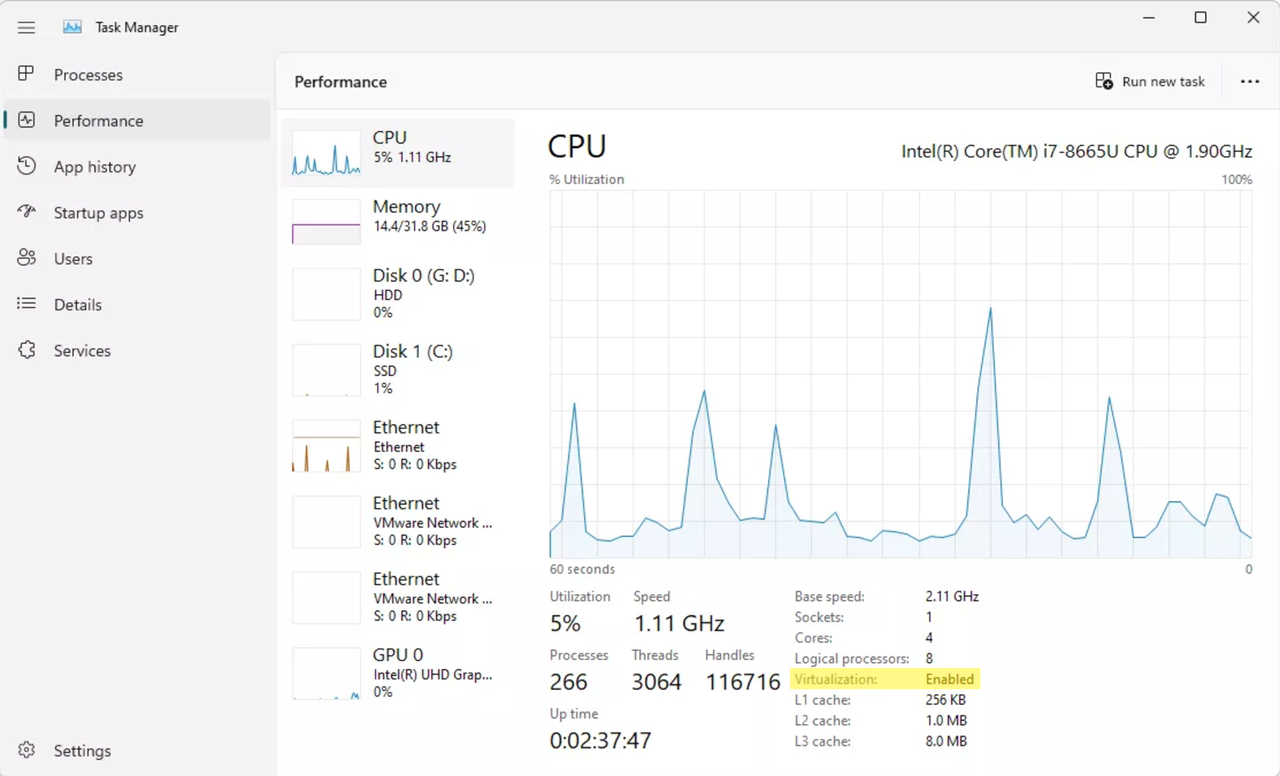 任务管理器中的虚拟化
如果虚拟化被禁用,则可能需要检查主板固件的 BIOS 设置。在 BIOS 设置中启用虚拟化的方法因主板供应商而异。以华硕主板为例,你可以参考这篇文章来启用虚拟化。
然后,你需要重启电脑并启用 Hyper-V。有关详情,请参阅这篇微软文章。
-
检查 Docker Desktop 服务是否已启动。
你可以运行以下命令来启动 Docker Desktop 服务。
C:\>net start com.docker.service
The Docker for Windows Service service is starting.
The Docker for Windows Service service was started successfully. -
检查 WSL 是否已正确安装。
你可以运行以下命令来安装或更新 WSL 2 命令。
C:\>wsl --update
Checking for updates.
The most recent version of Windows Subsystem for Linux is already installed. -
检查 Docker 守护进程是否已启动。
你需要进入 Docker Desktop 的安装目录并运行
.\DockerCli.exe -SwitchDaemon来启动 Docker 守护进程。C:\>cd "C:\Program Files\Docker\Docker"
C:\Program Files\Docker\Docker>.\DockerCli.exe -SwitchDaemon
Switching to windows engine: Post "http://ipc/engine/switch": open \\.\pipe\dockerBackendApiServer: The system cannot find the file specified. -
检查是否以管理员模式启动了 Docker Desktop。
确保已在管理员模式下启动 Docker Desktop。为此,右键单击Docker Desktop并选择以管理员身份运行。
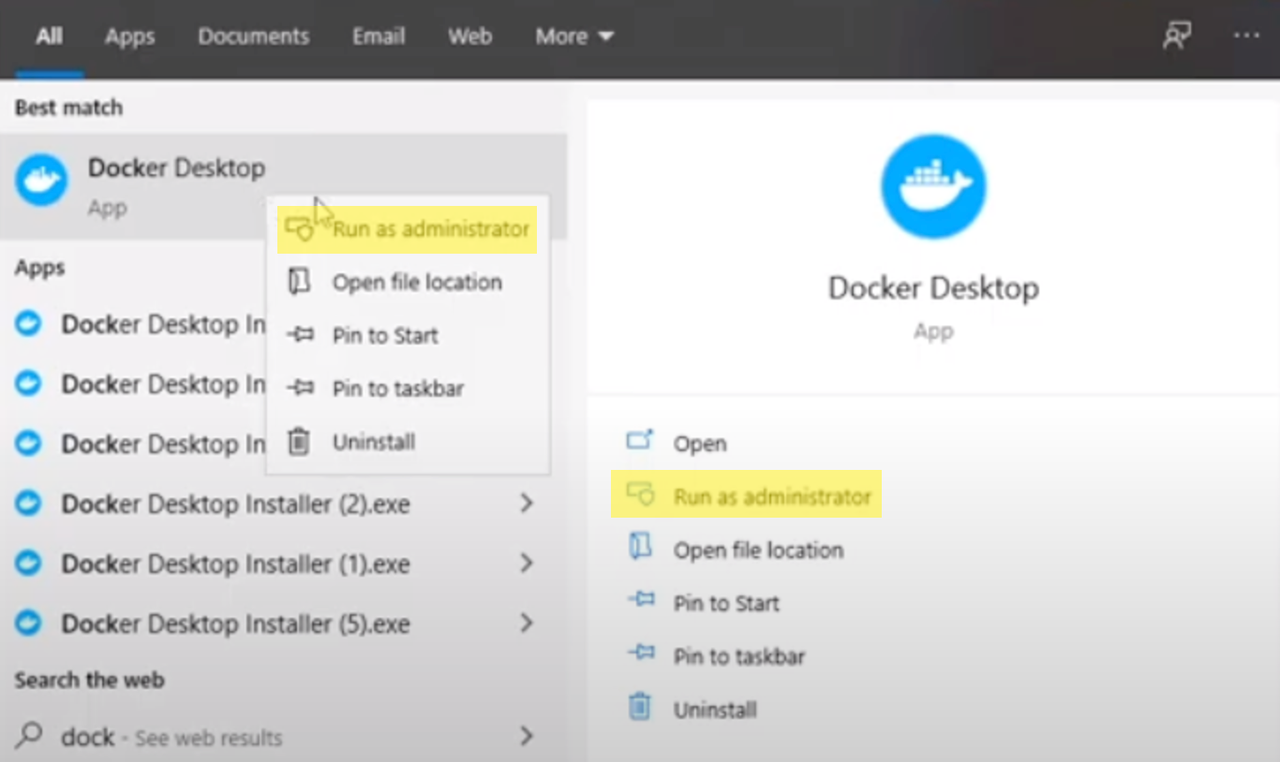 以管理员身份启动 Docker Desktop
在部署 Milvus 时,如何处理与 WSL 相关的问题?
如果你在从 WSL 2 运行 Milvus 时遇到 WSL 相关问题,你可能需要检查是否已将 Docker Desktop 配置为使用基于 WSL 2 的引擎,方法如下。
-
确保在 "设置">"常规"中勾选了 "使用基于 WSL 2 的引擎"。
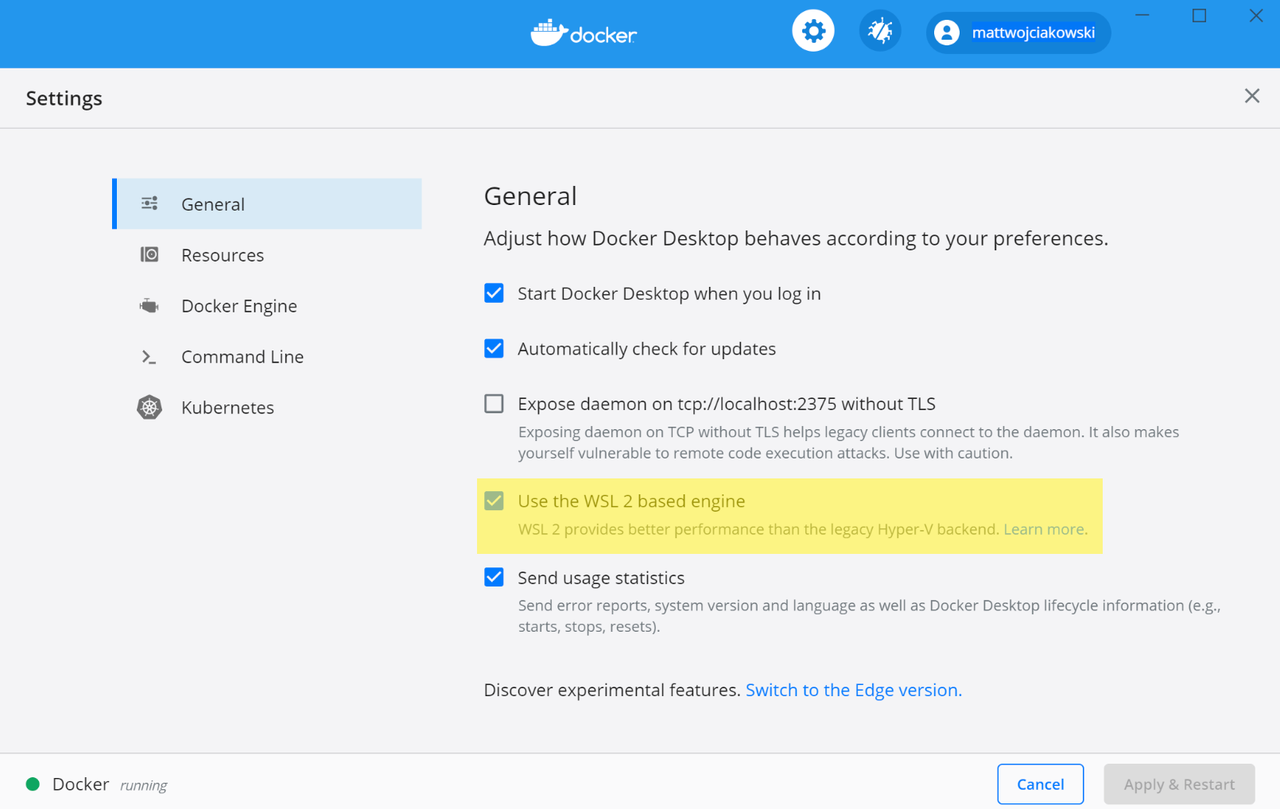 在 Docker Desktop 设置中使用基于 WSL 2 的引擎
 -
从已安装的 WSL 2 发行版中选择要启用 Docker 集成的发行版:设置>资源>WSL 集成。
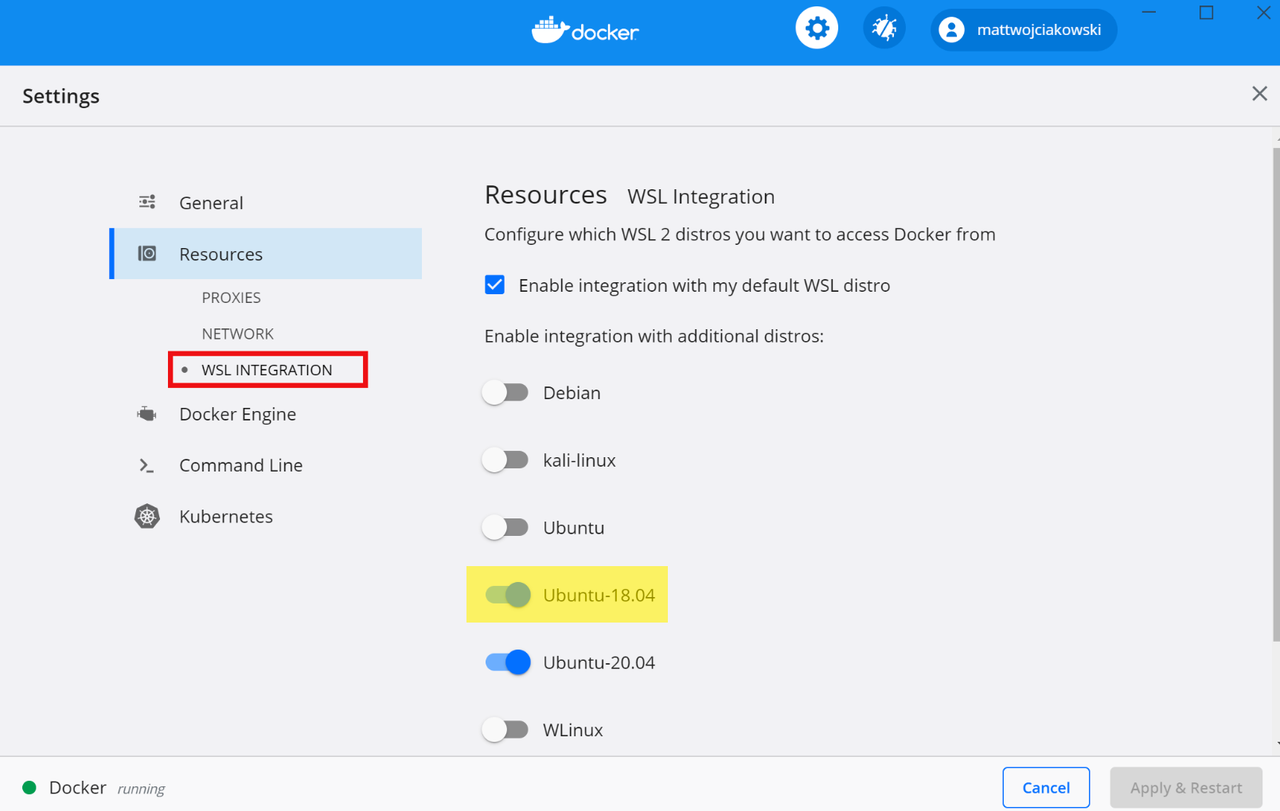 在 Docker 桌面设置中选择 WSL 2 发行版
如何处理 Milvus 启动过程中读取Read config failed 时提示的卷相关错误?
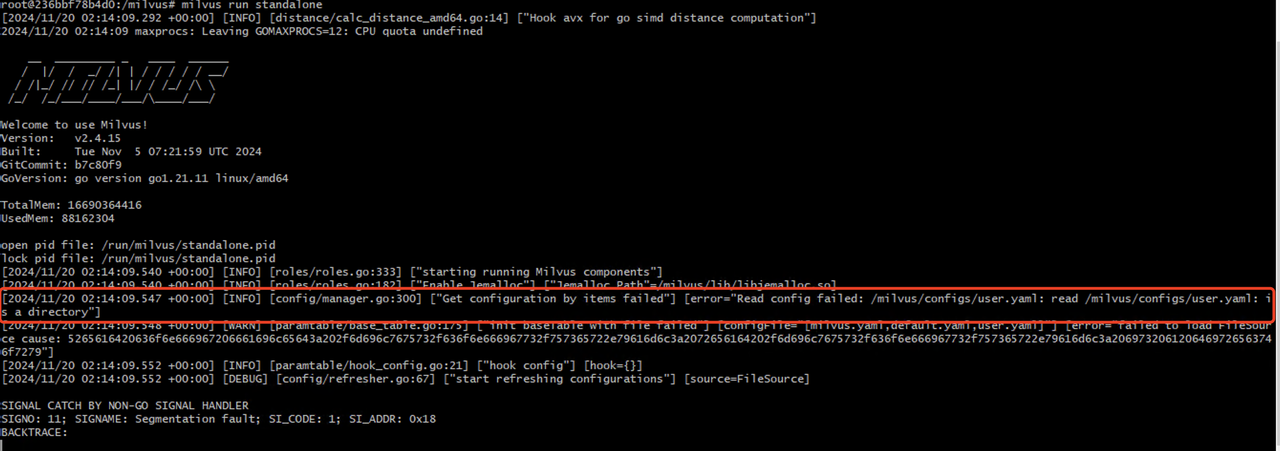 Milvus 启动过程中读取配置失败的错误提示
要处理 Milvus 启动过程中提示 "读取配置失败 "的错误,你需要检查挂载到 Milvus 容器中的卷是否正确。如果卷已正确挂载到容器中,你可以使用docker exec 命令进入容器并列出**/milvus/configs**文件夹,如下所示。
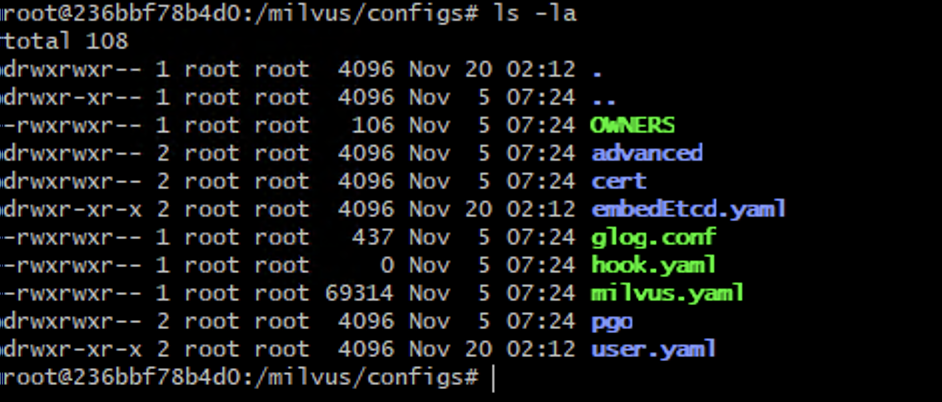 列出 Milvus 配置文件
下一步
在 Docker 中安装 Milvus 后,你可以
-
查看Quickstart,了解 Milvus 的功能。
-
学习 Milvus 的基本操作:
-
在云上部署你的 Milvu 集群:
-
探索Milvus WebUI,一个用于 Milvus 可观察性和管理的直观 Web 界面。
-
探索Milvus 备份,一个用于 Milvus 数据备份的开源工具。
-
探索Birdwatcher,用于调试 Milvus 和动态配置更新的开源工具。
-
探索Attu,一个用于直观管理 Milvus 的开源图形用户界面工具。